
Viewing and Managing Your Projects & Tasks as Talent
Welcome! This guide will help you understand how to view and manage your assigned projects and tasks on the Worksuite platform. Whether you're new or need a refresher, we've got you covered with clear steps and helpful tips.
TABLE OF CONTENTS
- Introduction to tasks & projects
- Understanding Projects
- Understanding Tasks
- Timesheets
- Milestones & deliverables
- Messaging in a task
- Invoices & payments in tasks
- Support/Resources
Introduction to tasks & projects
When you are invited to a task, you will receive an email notification sent by the Worksuite system. Be sure to add Worksuite as a contact to ensure these important emails do not go to spam.
Accessing Projects & Tasks
To view your active projects and tasks:
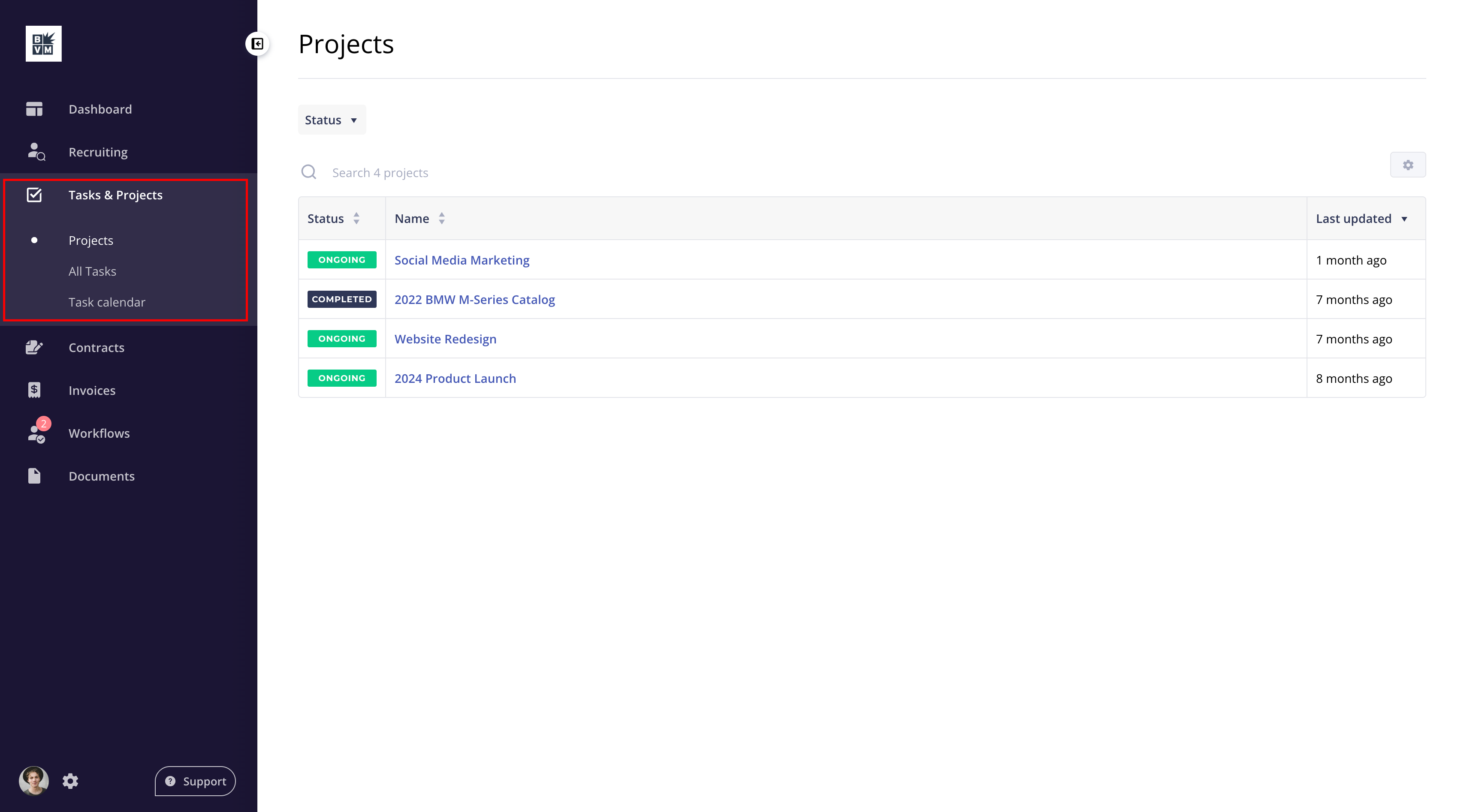
- Navigate to the left-hand menu of your Worksuite dashboard.
- Click Tasks & Projects, then Projects (projects you've been added to) or All Tasks (tasks assigned to you). Your workspace may use different names. Open opportunities you can apply to are under Marketplace → Job board, not here. See I Can't See Opportunities or Apply for One.
This will open a page showing:
- All projects you’ve been added to
- Any tasks that have been specifically assigned to you
Understanding Projects
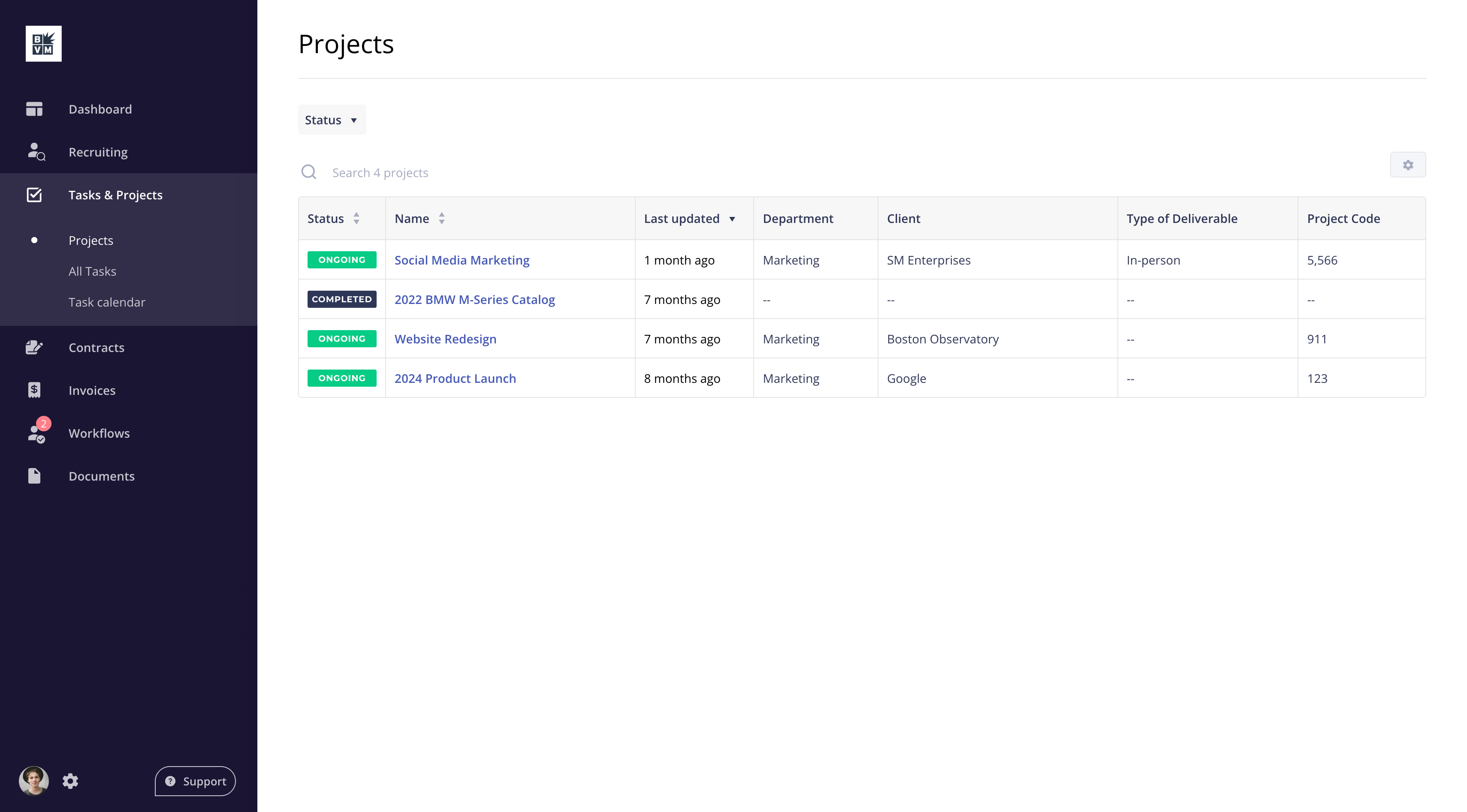
Projects are used to organize related tasks under a single group. You may be added to one or more projects by a client.
Each project includes:
- The project name.
- The client or company that created it.
- A brief description (if provided)
- Any tasks assigned to you
To view more details, click a project. You’ll then see the project details and the tasks assigned to you.
Understanding Tasks
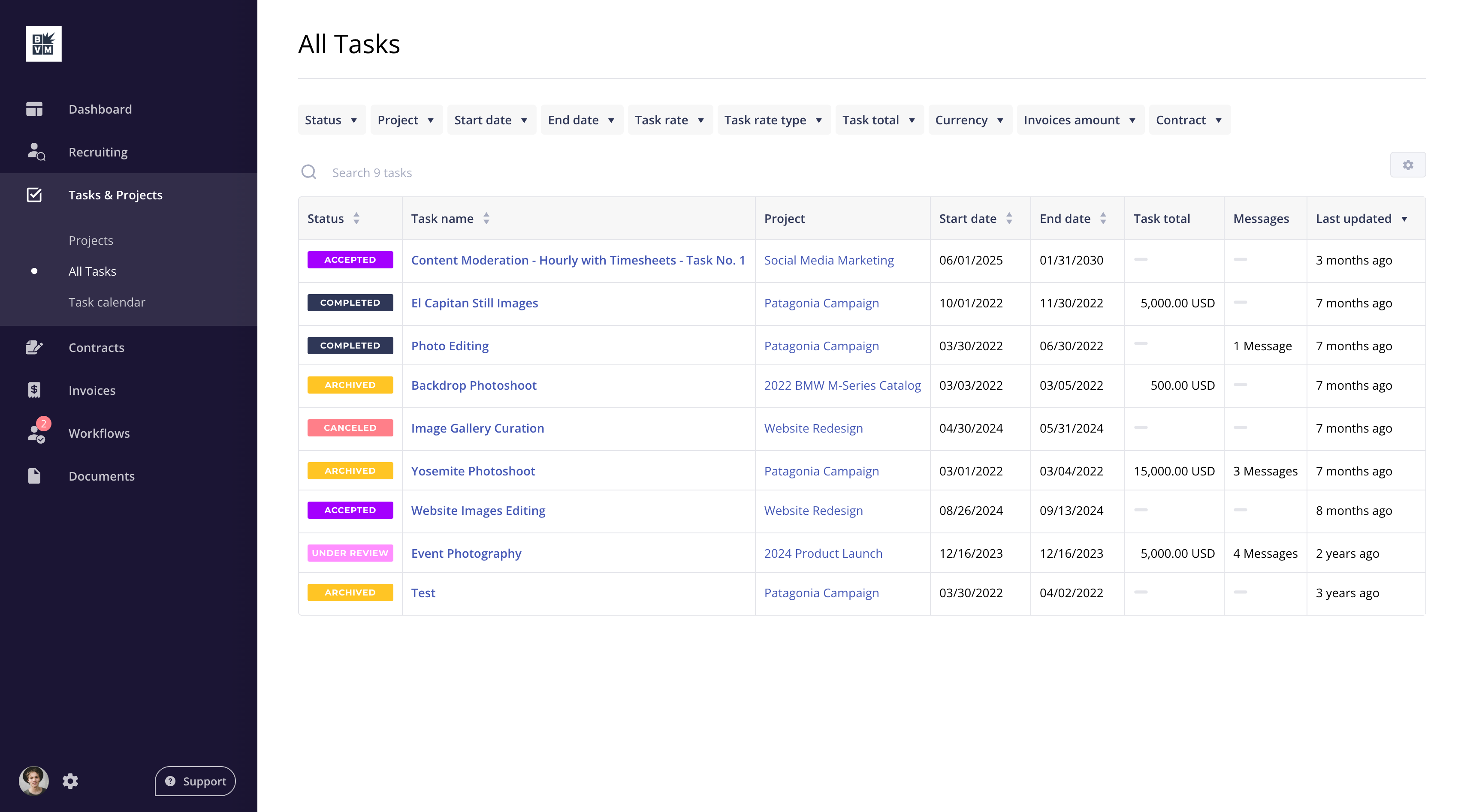
Tasks are individual items assigned to you as part of a project. These are usually specific actions or deliverables the client needs you to complete.
Each task may include:
- A title or summary
- A due date (if applicable)
- A detailed description or instructions
- A status to help you track progress (e.g., Accepted, Completed)
Tip: If any task details are unclear or missing, we recommend messaging your client directly using the in-platform chat/message feature. Open communication can help avoid delays.
Responding to task invitations

The button in the task invitation email opens the task. You can also find your tasks on your dashboard under My Tasks, where you can review the basic task details:

Clicking the task title will provide more information about task details, files and required agreements, give you an opportunity to message your client and either accept or reject the task. Use the Details, Files, Agreements and Messages tabs to review the task, then click Accept task or Reject task.

Timesheets
Timesheets may be used by your client to ensure accurate payment when you are working on an hourly pay project. You will be able to add your hours per day - don't forget to click Submit for review at the end of each week. To learn more, see Timesheets: Logging Hours, Statuses and Fixing Common Problems.

Milestones & deliverables
Milestones and deliverables may be used by your client to manage product delivery and review progress. Each milestone can be tied to a percentage of the task fee. If you have any questions about the milestone details in your task, be sure to reach out directly to your client in the messages tab of the task.

Messaging in a task
All messaging regarding a specific task should be held in the Messages tab of your task. To learn more, see Sending a Message in Worksuite.

Invoices & payments in tasks

Depending on your agreement with your client, processing the payment for your work may begin in a few different ways. Be sure to understand the desired process by your client prior to beginning your task. If you have any questions, use the task messaging feature to communicate directly with them. Below are the options your client may choose.
Uploading an invoice
You can add an invoice to your task by clicking Add Invoice on the task. To learn how to fill in and send the invoice, see Submitting an Invoice for Payment. Your workspace may call invoices something else, such as payments. Your client will then review the invoice for approval and schedule it for payment. You should review when the payment is scheduled to be processed in order to understand when you will receive it.

Submit a timesheet
When you submit a timesheet and your client reviews it, they have the option to automatically generate a payment upon approval of the timesheet. You should review when the payment is scheduled to be processed in order to understand when you will receive it.
Upon submission of a milestone
When your client reviews your completed milestone, they will have the option to automatically generate a payment upon approval. You should review when the payment is scheduled to be processed in order to understand when you will receive it.
Upon completion of a task
After you mark a task as complete, your client will review it and complete the task on their end. When they do this, they will have the option to automatically generate a payment upon approval. You should review when the payment is scheduled to be processed in order to understand when you will receive it.
Support/Resources
Still have questions about your projects and tasks? Click Support in the bottom-left corner of Worksuite to contact our Support team, or email support@worksuite.com.
For questions about your work, projects or rates, message your client from Messages in Worksuite.