
Your portfolio shows your client's team examples of your work, grouped into projects. Each project can hold images, PDFs, audio and video links, so your client can see what you've done without leaving Worksuite.
TABLE OF CONTENTS
- Before you start
- Add a project
- Edit a project
- Delete a project
- Change your featured project
- Who sees your portfolio
- If an upload doesn't work
- Support/Resources
Before you start
- You manage your portfolio from Settings → Portfolio. If you don't see Portfolio there, your client doesn't use portfolios, and you don't need to add one.
- Your client may also ask for your portfolio as a stage in your onboarding. It's the same portfolio, so projects you add in either place show in both.
Add a project
To open your portfolio, click the settings icon next to your profile picture in the bottom left, then select Portfolio.
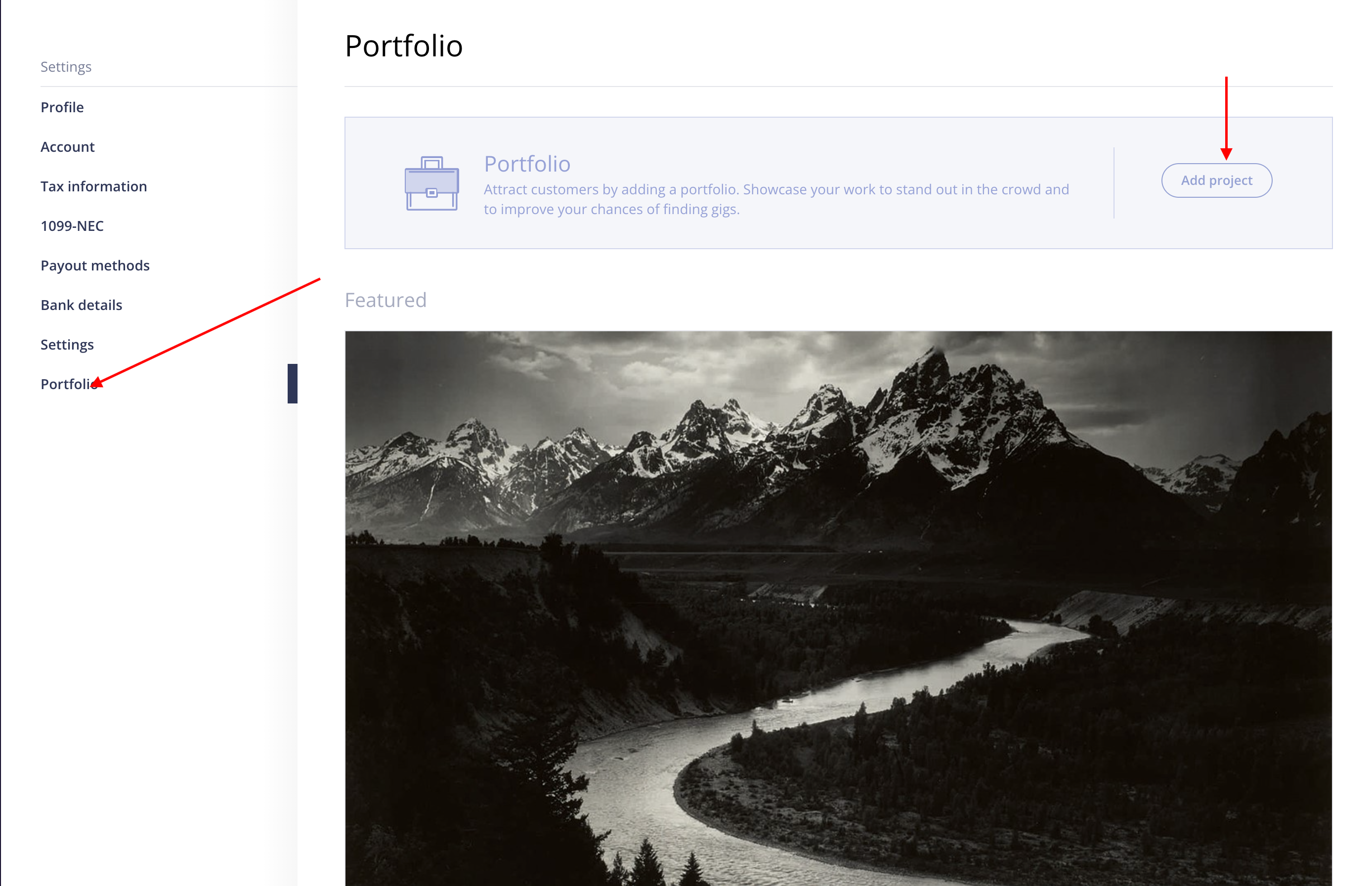
- Click Create portfolio if your portfolio is empty, or Add project if you already have projects. The New project window opens.
- Enter a Project name.
- (Optional) Add a Project description, such as the client, your role and the result.
- Under Select what files to add, choose what to add (see the table below) and add your files or link.
- Repeat step 4 to add more items to the same project.
- (Optional) Tick Feature this project to show it first, in a larger tile.
- Click Save project.
You'll see "Portfolio project has been added", and the project appears in your portfolio.
| Button | What it adds |
|---|---|
| Upload Images | Up to 10 images at a time, in JPG, JPEG, PNG, GIF, WEBP, BMP, TIF, TIFF or HEIC format |
| Upload PDF | Up to 10 PDF files at a time |
| Upload Audio | One audio file at a time |
| Link Video | A YouTube or Vimeo link. Paste it and click Save. |
Each project needs at least one item. If you try to save an empty project, you'll see "Please add at least one image, audio, video or PDF."
Edit a project
- Go to Settings → Portfolio.
- Open the three-dot menu on the project and click Edit. The Edit project window opens.
- Change the name, description or items.
- Click Save project.
You'll see "Portfolio project has been updated".
Delete a project
Important: Deleting a project can't be undone. Save copies of any files you want to keep first.- Go to Settings → Portfolio.
- Open the three-dot menu on the project and click Delete.
- Click Yes, delete project.
You'll see "Your project has been deleted."
Change your featured project
Only one project can be featured. It shows first on your portfolio, in a larger tile. To feature a different project:
- Edit the project you want to feature, tick Feature this project, and click Save project. Your previous featured project moves back into the list.
Who sees your portfolio
Your client's team sees your portfolio on your profile in Worksuite, with your featured project first. Add only work you're allowed to share, and update it as your work changes.
If an upload doesn't work
- Check the file type against the table above. Images in other formats, such as SVG, aren't accepted.
- Keep each file under 32 MB.
- For video, use a full YouTube or Vimeo link. If you see "Video URL is not correct", copy the link again from the video page.
If a file still won't upload, contact Worksuite Support with the file type, the file size and what you see on screen.
Support/Resources
Still have questions about your portfolio? Click Support in the bottom-left corner of Worksuite to contact our Support team, or email support@worksuite.com.
For questions about your work, projects or rates, message your client from Messages in Worksuite.